Start here
Guildhall is a local app for letting a guild of AI helpers work on your real projects while keeping plans, work, review, and blockers visible. You do not have to understand AI provider setup, agent roles, or internal queues before your first run.
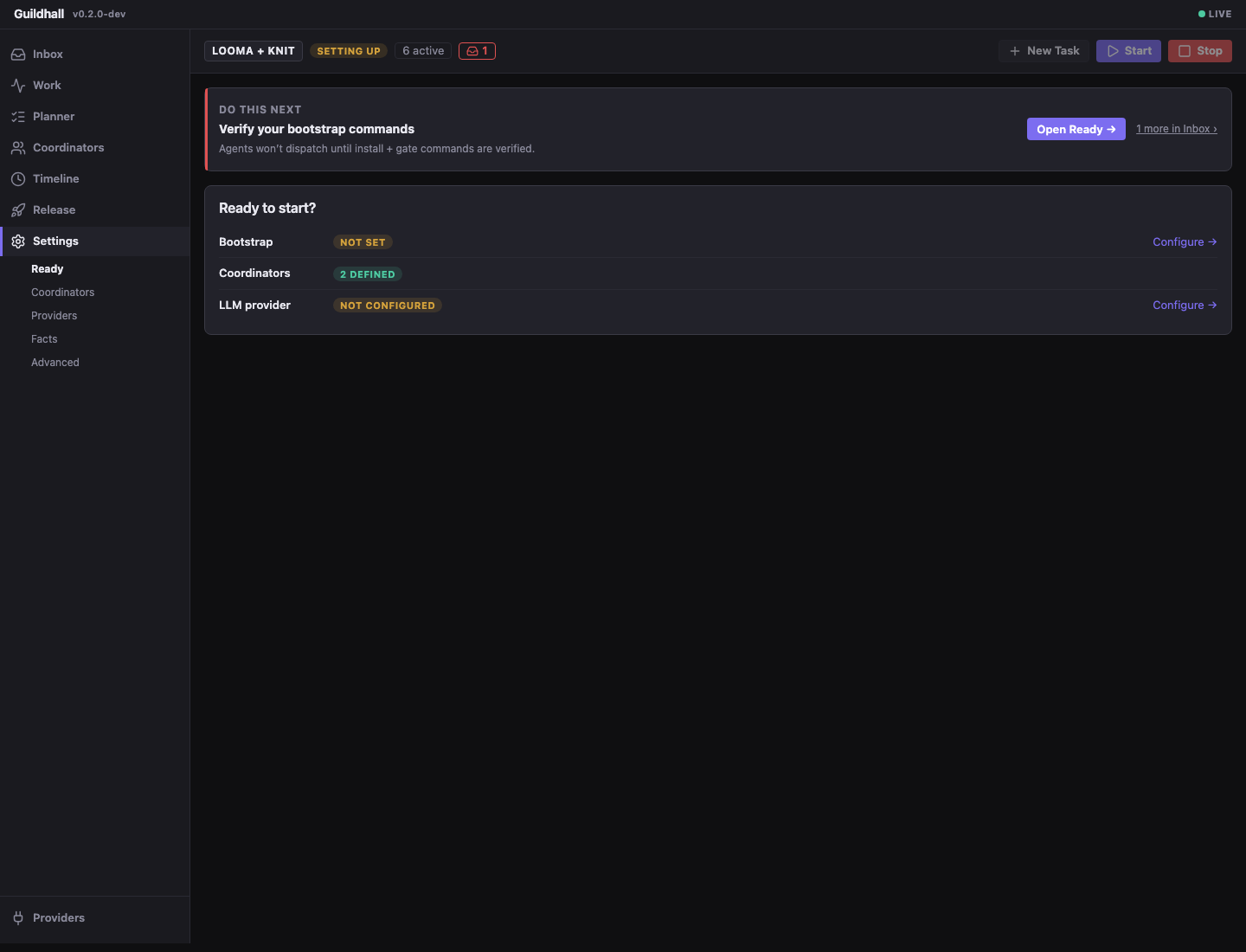
The first mental model
Think of Guildhall as a small construction office for software:
- Projects are your repos.
- Blueprints are the accepted plans for what should be built and how it will be checked.
- Tasks are framed pieces of work that can move through the guild.
- The guild is the set of helpers that plan, build, inspect, and report.
- The shell is the browser screen where you can see the job site.
The goal of getting started is simple: open one project, give it one small task set, and see whether the work moves with clear evidence. Read How Guildhall builds when you want the full mental model.
You should not have to answer a long setup questionnaire. Guildhall should infer routine defaults, recommend a path, and ask only when the answer changes what you are trying to build or how safe the run will be.
Install
curl -fsSL https://raw.githubusercontent.com/matthew-dean/guildhall/main/scripts/install.sh | shIf you prefer npm and already have Node.js 20 or newer:
npm install -g guildhallThe installer downloads the latest macOS package from GitHub Releases and checks guildhall-macos.tar.gz.sha256 before installing. To pin a release:
curl -fsSL https://raw.githubusercontent.com/matthew-dean/guildhall/main/scripts/install.sh | GUILDHALL_VERSION=0.6.0 shOpen one project
cd ~/projects/my-app
guildhall serve
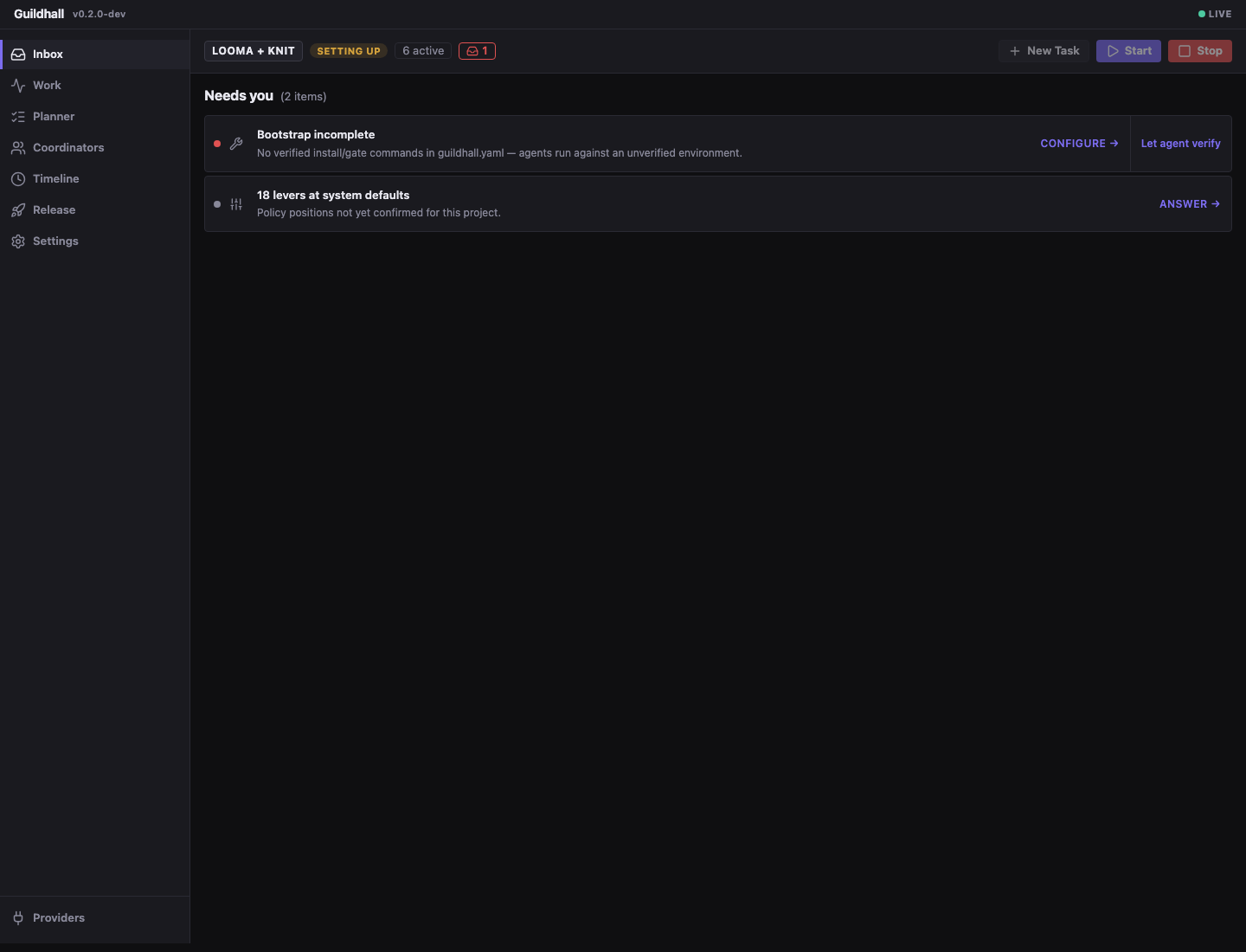
Guildhall opens the browser. If this is the first time the repo has been opened, the setup wizard asks for only the basics: the project name, a stable URL slug, and how the guild should call a model. That is the first site survey: where is the project, what is it called, and how can the guild work safely?
Choose your path
Use the path that matches your repo:
- New project: start from an empty or early repo.
- Existing project: attach a repo that already has plans, docs, or TODOs.
Then read First task set before pressing Start. A good first run is small enough to watch, concrete enough to verify, and framed well enough that the worker is not inventing the plan while building.
What success looks like
After you start a project, the app should make motion visible:
- task status changes
- live events appear
- transcripts and review notes accumulate
- blockers explain what stopped and what needs your answer
If the button flips back and nothing visible changed, that is not a good unattended run. It is a setup problem, a product bug, or a task that needs more information.